Will You Lose SEO Rankings Migrating Shopify to WordPress?
The four things that actually decide whether your rankings survive a Shopify to WordPress migration, what Migration Master preserves automatically, and what you still have to do yourself.
By - Migration Master Editorial Team
The fear is reasonable the numbers back it up
If you've run a Shopify store for a few years, your product pages, collection pages, and blog posts aren't just contentthey're assets. Rankings you didn't pay for, built up post by post. That's exactly what a badly handled migration puts at risk.
Industry write-ups on Shopify to WordPress moves cite recovery timelines stretching well past a year when redirects and URL structure aren't handled correctly, with some stores losing half their organic traffic in the process. That's not a technicality, it's the difference between a migration that pays for itself and one that costs you a year of pipeline.
The good news is almost none of that risk comes from the actual data transfer. It comes from four specific things either being handled or not.
The four things that actually decide this
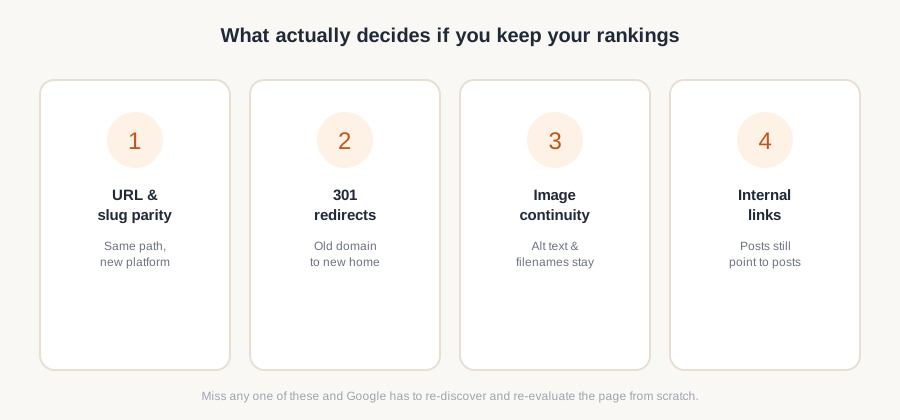
Every migration post-mortem comes back to the same four levers:
- URL and slug parity does the new page live at a path Google already recognizes?
- Imported URL rewriting do links inside your posts and pages update to the new WordPress URLs instead of continuing to point at the old Shopify site?
- Image continuity do your images keep their alt text and filenames, or do they show up as generic, unindexed files?
- Internal links do your posts and pages still link to each other correctly after the move?
Get all four right and search engines mostly treat the migration as a non-event. Get one wrong at scale and you're re-earning rankings you already had.
URL and slug parity: the one that matters most
A ranking is tied to a URL, not to a platform. If /products/canvas-tote-bag becomes /product/canvas-tote-bag-2 after migration, you haven't moved a rankingyou've created a new page and abandoned an old one, from Google's perspective.
This is where hand migrations and CSV-based tools tend to lose the most ground: bulk importers frequently append IDs, change casing, or restructure paths to fit their own schema. Every one of those changes is a small rankings reset.
Imported URL rewriting: keeping your content connected
During the WordPress import, leave "Change all imported URLs that currently link to the previous site" enabled. This updates links inside your imported posts and pages so they point to your new WordPress content instead of the old Shopify URLs.
Combined with Download and import file attachments, this helps preserve your internal linking structure and media references without requiring you to manually edit hundreds of posts after the migration.
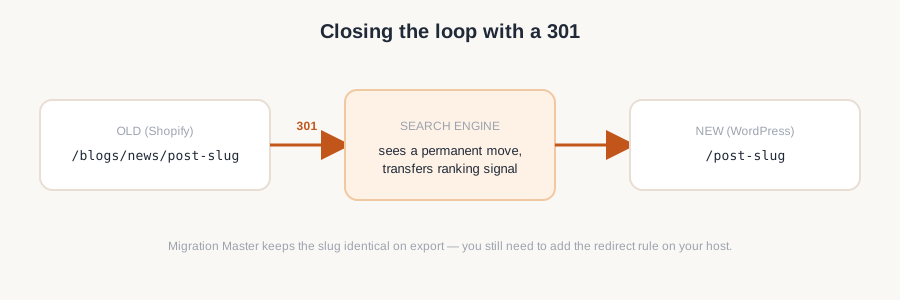
Image continuity: the quiet ranking leak
Product and blog images carry their own search valuealt text ranks in image search, and filenames are a minor but real relevance signal. Migrations that re-upload images through a generic importer often strip both, replacing canvas-tote-bag-natural.jpg with image-047.jpg and a blank alt attribute.
It's invisible until you check Google Image Search referrals a few months later and notice they've gone quiet.
Internal links: what carries over automatically
A blog post that links to three product pages and two other articles is only as strong as those links staying intact. If posts and pages import as flat, disconnected content, you lose the internal linking structure that helped those pages rank in the first place, and you're left rebuilding it by hand across hundreds of posts.
What Migration Master preserves automatically
This is where the export format does real work. Migration Master builds standard WordPress WXR files not a generic CSV and a few things fall out of that by default:
- Pages keep their original slugs, so paths that were already indexed don't shift under you.
- Categories match by slug, so collection and blog category pages file into the right place instead of getting flattened into "Uncategorized."
- Images keep their original filename and alt text, so nothing in your media library shows up blank or generically named.
- Blog posts keep their author, publish date, and full HTML body, linked back to the correct category, so internal structure survives the move instead of being rebuilt from scratch.
You still see all of this before paying for anythingthe itemized manifest shows exactly what will export, slugs and all, so there are no surprises once it lands in WordPress.
What's still on you
To be direct about scope: Migration Master moves and preserves your content, it doesn't manage your DNS or hosting. Two things remain your responsibility after export:
- Setting up the actual 301 redirect rules once your new WordPress site is live (your host or DNS provider handles this).
- Resubmitting your sitemap and requesting indexing in Google Search Console after cutover.
Because your slugs don't change on export, your redirect map is simplerin most cases it's the old domain pointing at the same path on the new one, rather than a path-by-path remap.
A short post-migration checklist
- Record current rankings and top pages before you cut over.
- Set up 301 redirects from old URLs to new ones.
- Submit the new sitemap in Google Search Console.
- Spot-check your 10 highest-traffic pages for correct slug, images, and internal links.
- Watch Search Console for crawl errors in the first 2-4 weeks.
Get the export right and this list is maintenance, not damage control. See exactly what will export and how your slugs and categories will land with a free manifest preview before you commit to anything.
A worked example: redirecting a real Shopify store
Here's what this looks like end to end, using a typical store moving from yourstore.com on Shopify to the same domain on WordPress.
- Export with Migration Master and check the manifest. Say it shows products living at
/product/canvas-tote-bagin WordPress, versus/products/canvas-tote-bagon Shopify. That's the only structural change you need a rule for—everything else (blog posts, pages) keeps its slug. - Point DNS at your new host once the WordPress import is complete and you've spot-checked it.
- Add one wildcard redirect rule instead of hundreds of individual ones. If your host uses Apache, this goes in your
.htaccess:
This single line catches every product URL automatically—RedirectMatch 301 ^/products/(.*)$ /product/$1/products/canvas-tote-bagnow 301s to/product/canvas-tote-bag. - Leave blog and page URLs alone. Since Migration Master preserves those slugs exactly, a post that lived at
/blogs/news/sustainable-packagingneeds its own redirect only if your Shopify blog prefix (/blogs/news/) differs from your new WordPress permalink structure. If they match, no rule is needed at all. - Test before you celebrate. Visit five or six of your top-ranking old URLs directly and confirm each one lands on the correct new page with a 301 (not a 302)—most browser dev tools show this under the Network tab.
- Submit your sitemap in Google Search Console and watch the Coverage report for the next few weeks for any 404s the wildcard missed.
That's the whole redirect job for most stores: one wildcard rule for the product path change, plus a handful of one-off checks for anything that doesn't match the pattern.