How to Easily Migrate Shopify Products, Orders, Pages, and Images to WordPress
What actually moves, why migrations run into trouble, and a screenshot-by-screenshot walkthrough for moving your Shopify store — pages, blogs, products, orders, and images — into WordPress with Migration Master, including what it costs.
By - Migration Master Editorial Team
The real cost of a migration going sideways
A migration rarely fails because the wrong file format got used. It fails because nobody knew the true scope going ina "quick move" that was quoted for a weekend turns into weeks of staff time nobody budgeted for. That's a real cost even before anything breaks.
When product images or blog media don't come across cleanly, customers see it immediatelybroken photos and missing content read as a broken store, not a backend issue. And if URLs shift without redirects in place, the traffic and rankings built up over years can quietly disappear.
None of this shows up on a quote until it's already happened. The businesses that come out fine are the ones that know exactly what's moving, and roughly what it costs, before they commit to anything.
Where Migration Master fits in
Migration Master connects to your Shopify store and shows you an itemized manifest every page, post, category, and image it found before you pay for anything. You know the real scope, and the real cost, upfront.
It builds WordPress-ready WXR files directly, so categories, image attachments, and slugs carry over intact instead of getting flattened and rebuilt by hand. That's less staff time spent fixing things after the fact, and fewer broken links for customers or search engines to run into.
Connect your Shopify store to Migration Master
Before you can migrate anything, Migration Master needs read access to your Shopify store. If you haven't done this yet, follow our guide on how to connect a Shopify store to Migration Master it takes under a minute.
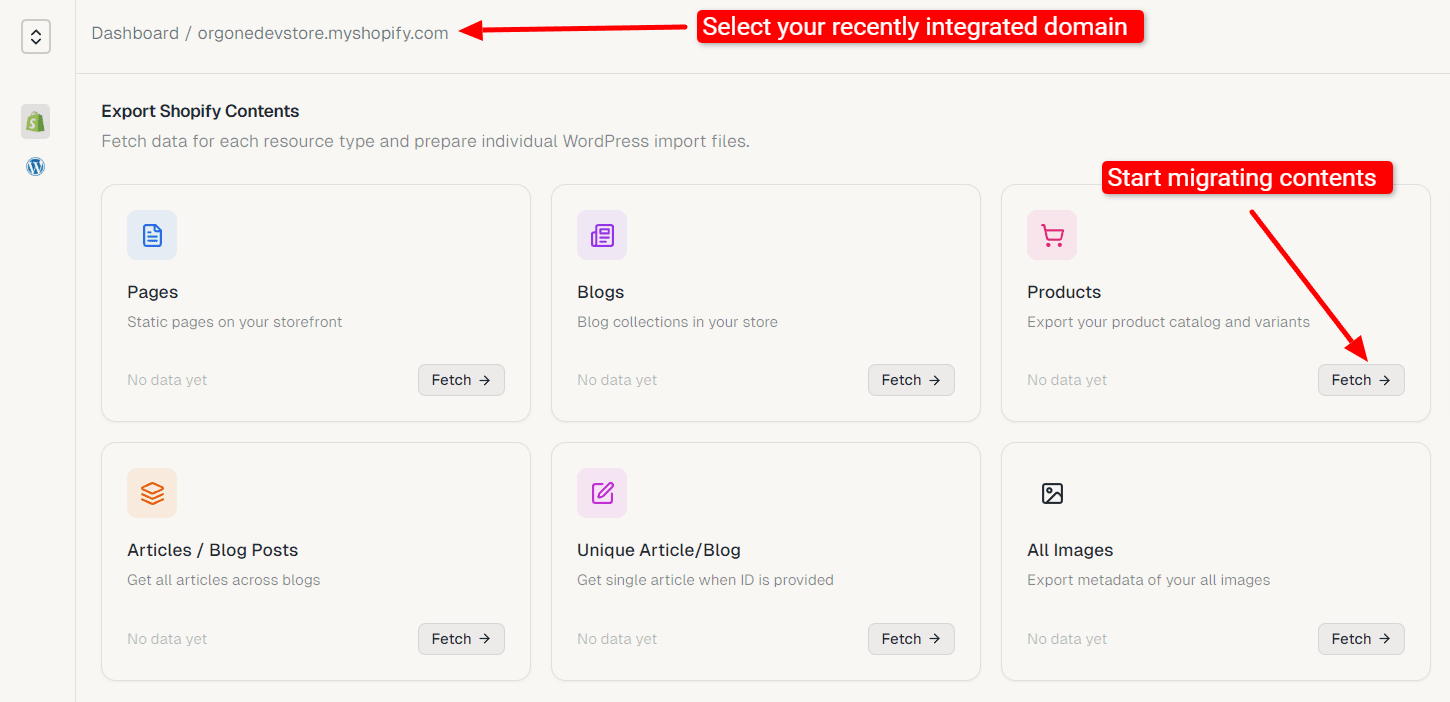
Once connected, select your store from the project selector and you'll land on the Export Shopify Contents dashboard, with separate cards for Pages, Blogs, Products, Orders, Articles, and Images.
Decide what you actually need to bring over
You don't have to migrate everything in one pass. Most stores moving to WordPress/WooCommerce care most about:
- Productstitles, descriptions, variants, prices, and stock.
- Ordersorder history, line items, and customer details.
- Pages & Blogs/Articlesyour store's content pages and blog posts.
- Imagesproduct photos, blog images, and other media.
Each card is fetched and exported independently, so you can start with Products today and come back for Orders or Pages later.
Fetch a content type
Click Fetch on any cardProducts, Orders, Pages, Blogs, Articles, or Imagesto pull that content in from Shopify. Repeat for each content type you want to migrate.
Review the export manifest and pick what to bring over
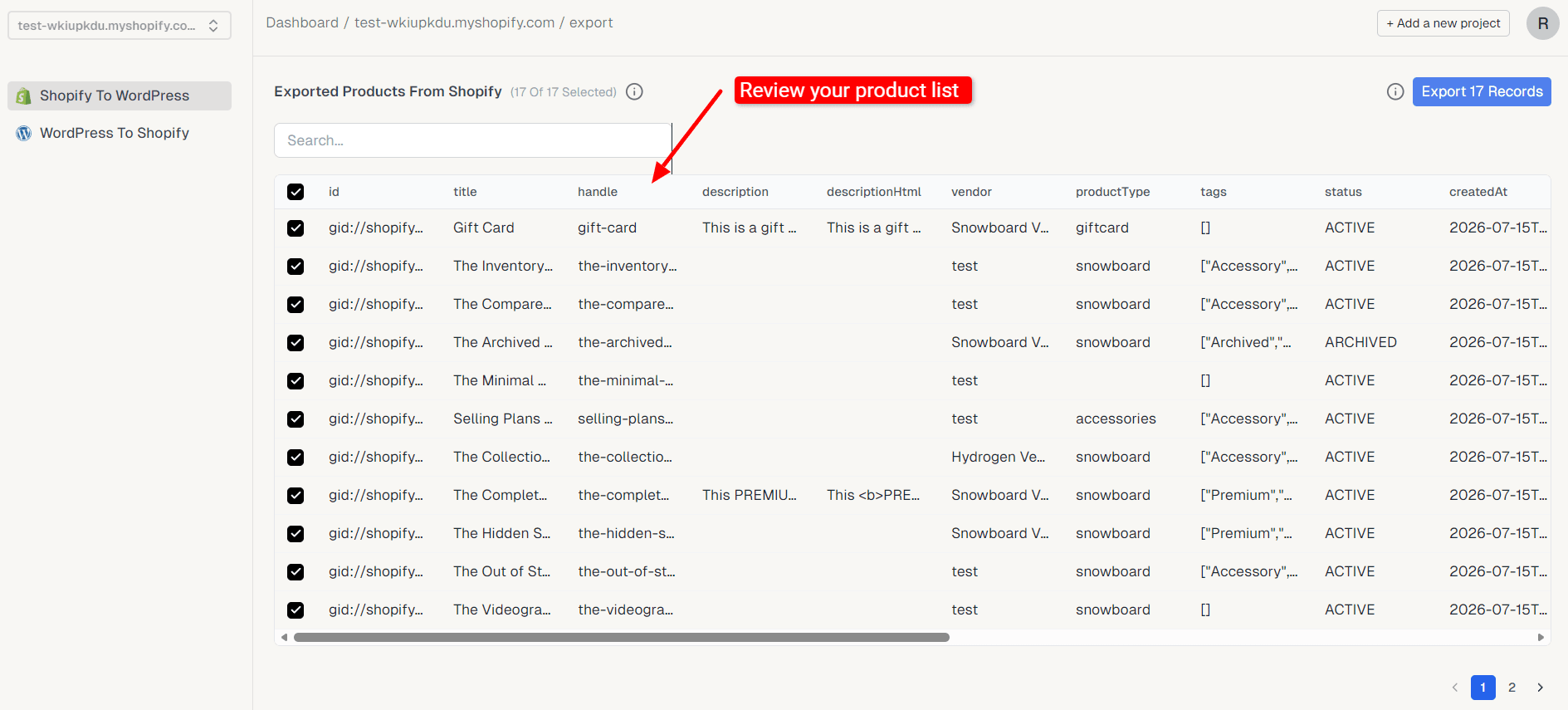
Migration Master shows every record it foundproducts, orders, pages, and so onin a searchable, sortable table. Uncheck anything you don't want migrated, then click Export [n] Records.
This is the easiest point to leave out test orders, draft pages, or discontinued products before they ever reach WordPress.
Confirm and generate the export package
Confirm and pay to generate the package. Behind the scenes, Migration Master builds a WordPress eXtended RSS (WXR) file for each content typethe format WordPress's native importer expects, including image references for attachments like product photos and blog images.
Download and unzip the package
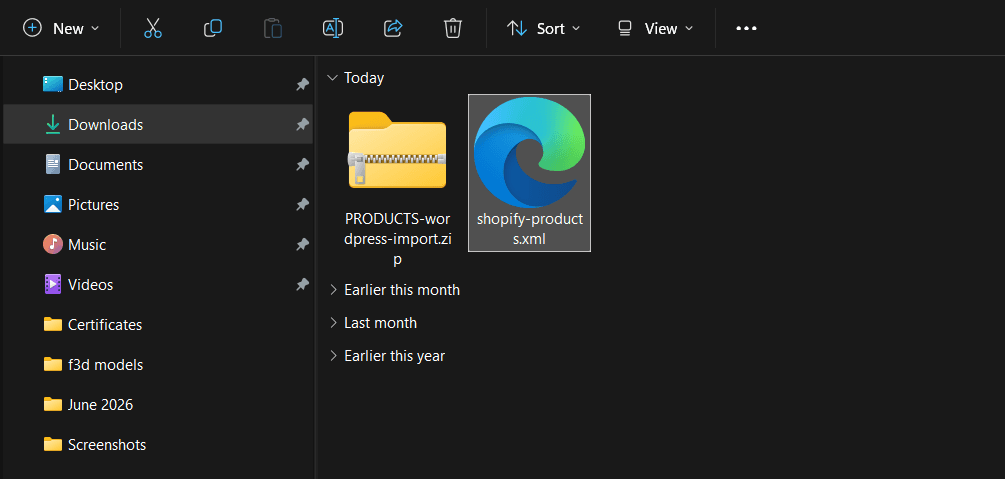
Extract the downloaded .zip fileinside you'll find one or more .xml files, one per content type, ready to hand to WordPress.
Go to WordPress → Tools → Import
In your WordPress admin, go to Tools → Import and run the WordPress importer (not WooCommerce products CSV) it's the one that reads WXR files and handles pages, blogs, products, and orders alike.
Upload each WXR file
Choose the .xml file for the content type you're importing, then click Upload file and import. If you exported multiple content types, repeat this step for each file.
Assign authors and download attachments
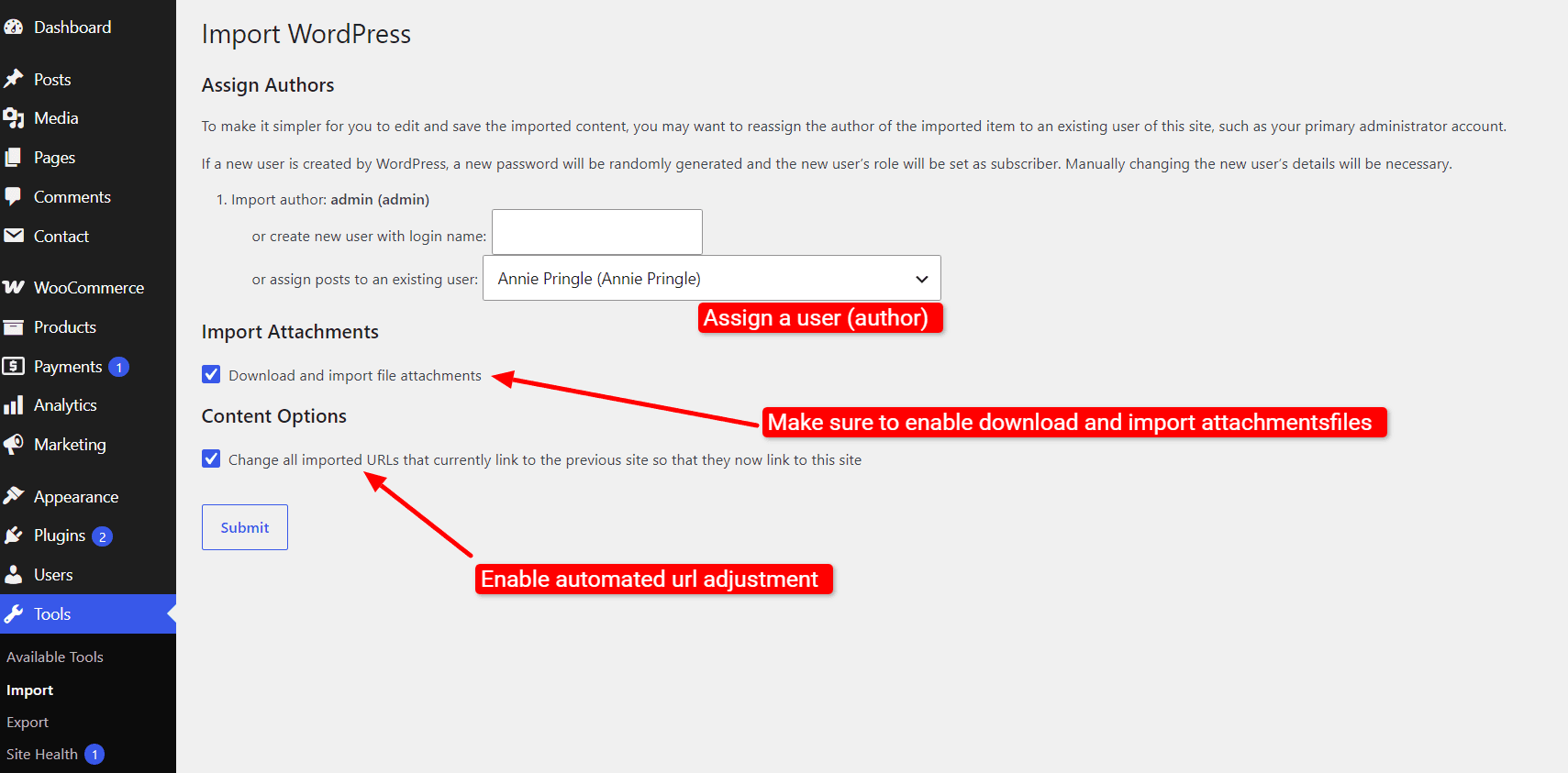
Assign an author for the imported content, and make sure Download and import file attachments is checked this is what pulls your Shopify images into WordPress' media library instead of just linking back to Shopify. Leave URL rewriting checked, then click Submit.
Is it actually worth paying for?
Migration Master charges per item exported $0.20 an item, $1 minimum rather than a flat fee. A store with roughly 4,300 items (images, articles, pages, and categories combined) lands around $870, which sits comfortably inside the $300–$1,000 range that DIY migration apps typically charge for a full store move.
The per-item model matters most at the edges. A flat-fee tool either overcharges a small blog with a couple hundred items, or underprices a 20,000-item catalog relative to the work involved. Paying by volume means a five-page brochure site and a content-heavy store both pay roughly what their size warrants.
Full-service agencies charge $15,000–$50,000 for comparable mid-market migrations, mainly for hands-on QA and custom rebuild work. If you're comfortable running the WordPress import yourself, that gap is the cost you're avoiding you're paying for the export, not a project team.
Verify everything landed correctly
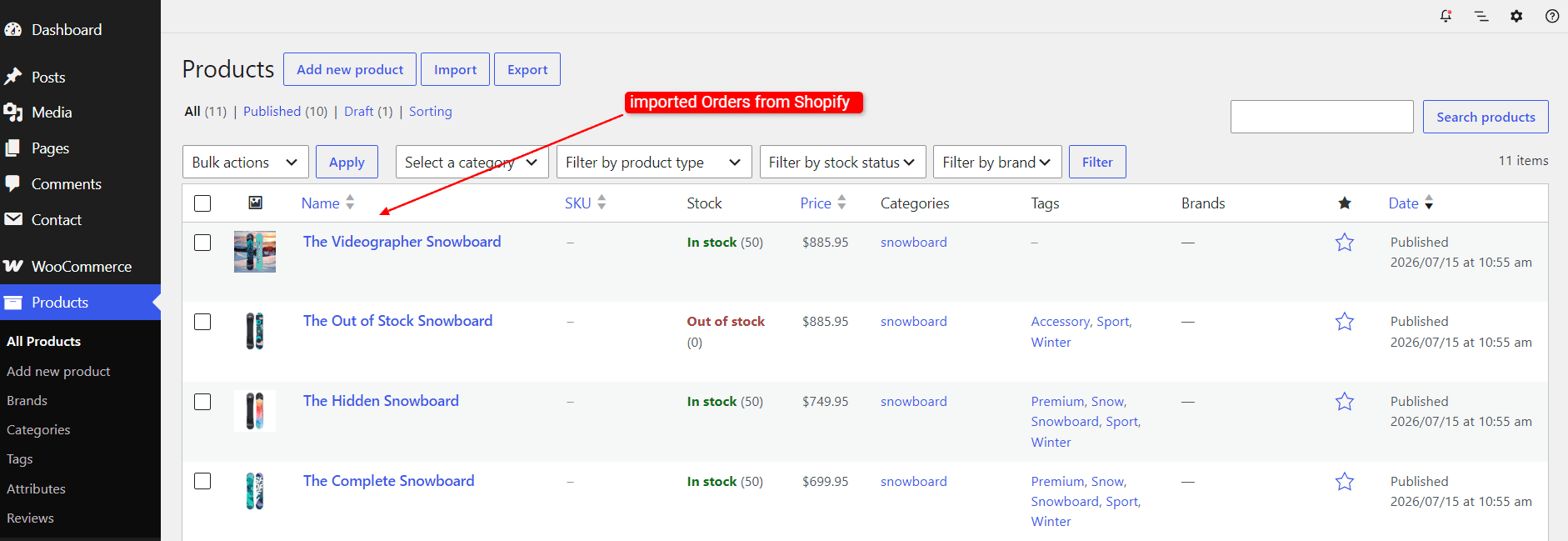
Spot-check each area: Products → All Products for prices and stock, WooCommerce → Orders for order history, Pages and Posts for your site content, and Media Library to confirm images came across.
If anything's missing, head back to Migration Master, refine your selection on the export table, and re-export just the records you need.