How to Connect a Shopify Store to Migration Master (in Under a Minute)
A screenshot-by-screenshot walkthrough of connecting a Shopify store to Migration Master, from entering your store domain to a confirmed connection.
By - Migration Master Editorial Team
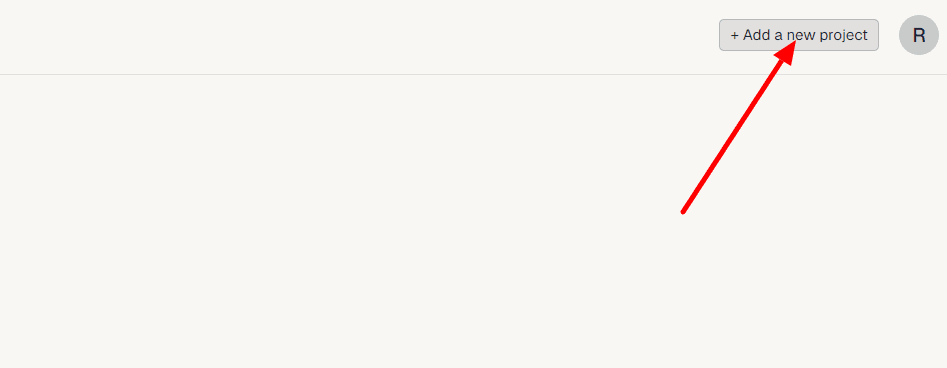
Start a new project and open the Shopify connection screen
From your Migration Master dashboard, click + Add a new project. You'll land on the Connect a Shopify store screen, which asks for your Shopify store domain.
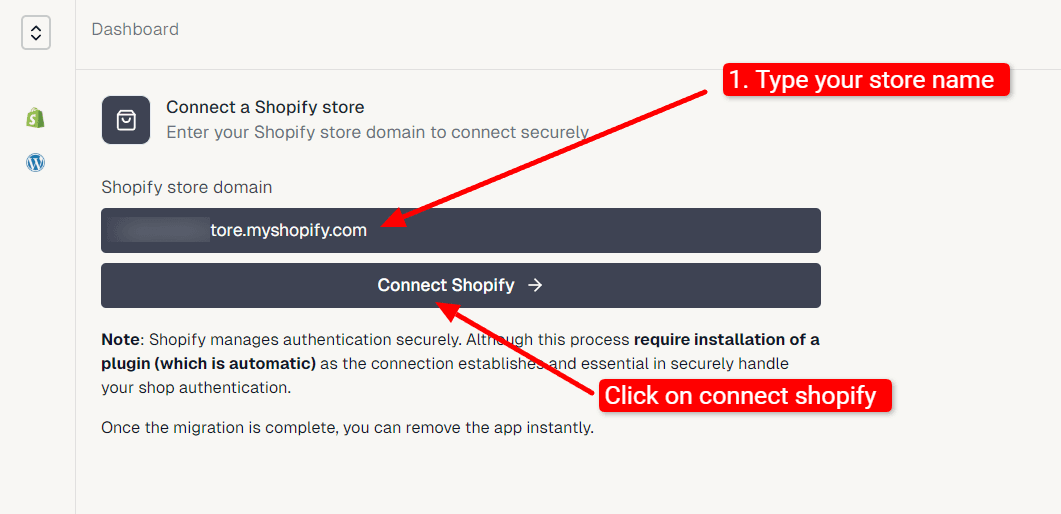
Enter your Shopify store domain
Type in your store's domain in the format your-store.myshopify.com, then click Connect Shopify.
A quick note before you continue: Shopify handles authentication securely, and connecting does require installing a small plugin (this happens automatically). Once your migration is complete, you can remove the app from your store instantly.
This redirects you to Shopify itself to complete the connection — your credentials are never entered directly into Migration Master.
Review the permissions Shopify is asking for
Shopify shows exactly what the migration-master-connector app will be able to see: customer data, staff and contributor data, and store data such as products, orders, and Online Store pages.
You can expand each section to see the specifics before continuing — Shopify also confirms that the app meets its data handling and privacy requirements.
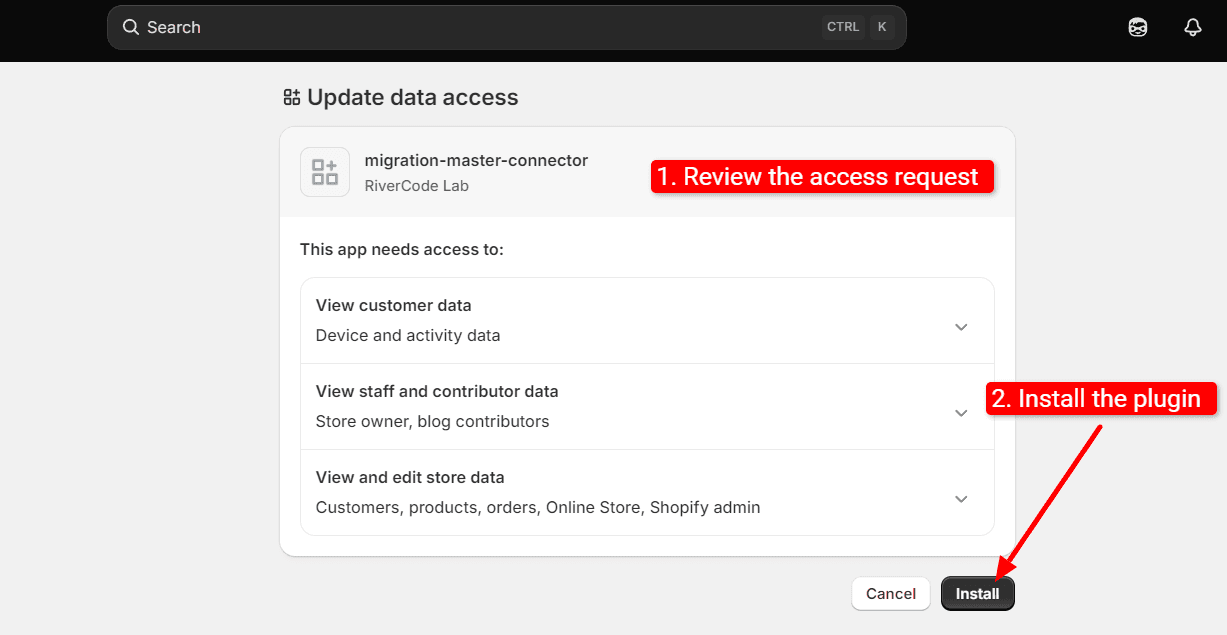
Install the app
Click Install. Shopify installs the connector app on your store and redirects you back to the Migration Master connection page.
Let the connection finish syncing
You may briefly see a message saying Shopify isn't connected yet — this is normal right after installing. Give it a moment (or refresh) while Shopify and Migration Master finish handshaking.
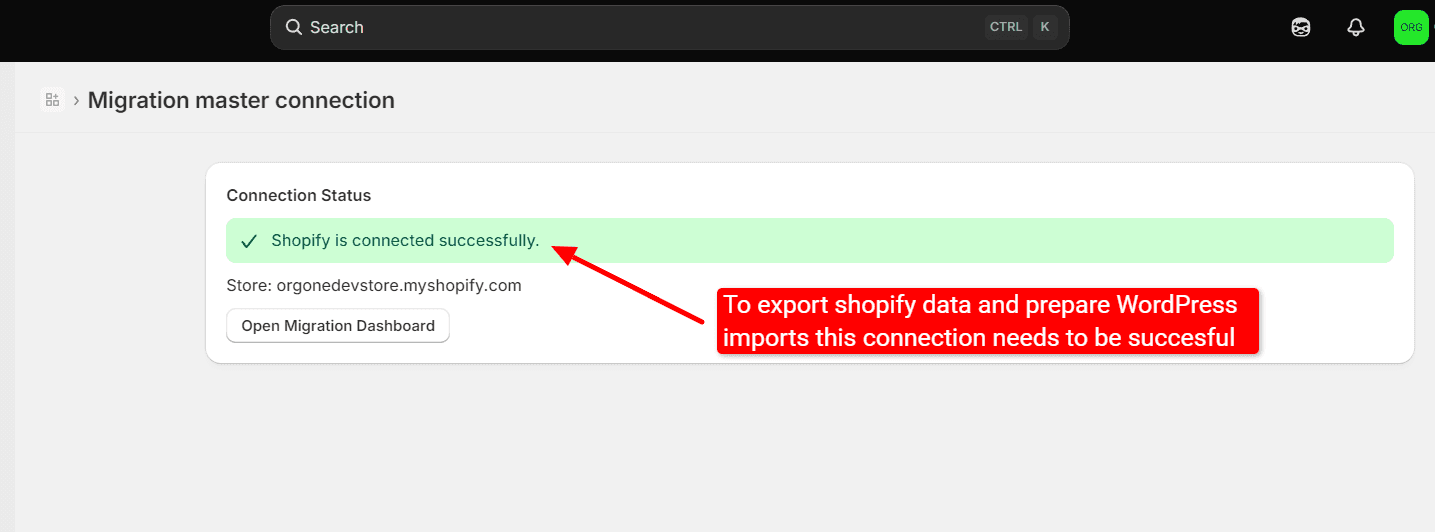
Once it's done, the status updates to Shopify is connected successfully, showing your store's domain. From here, click Open Migration Dashboard to jump back into Migration Master.
You're ready to migrate
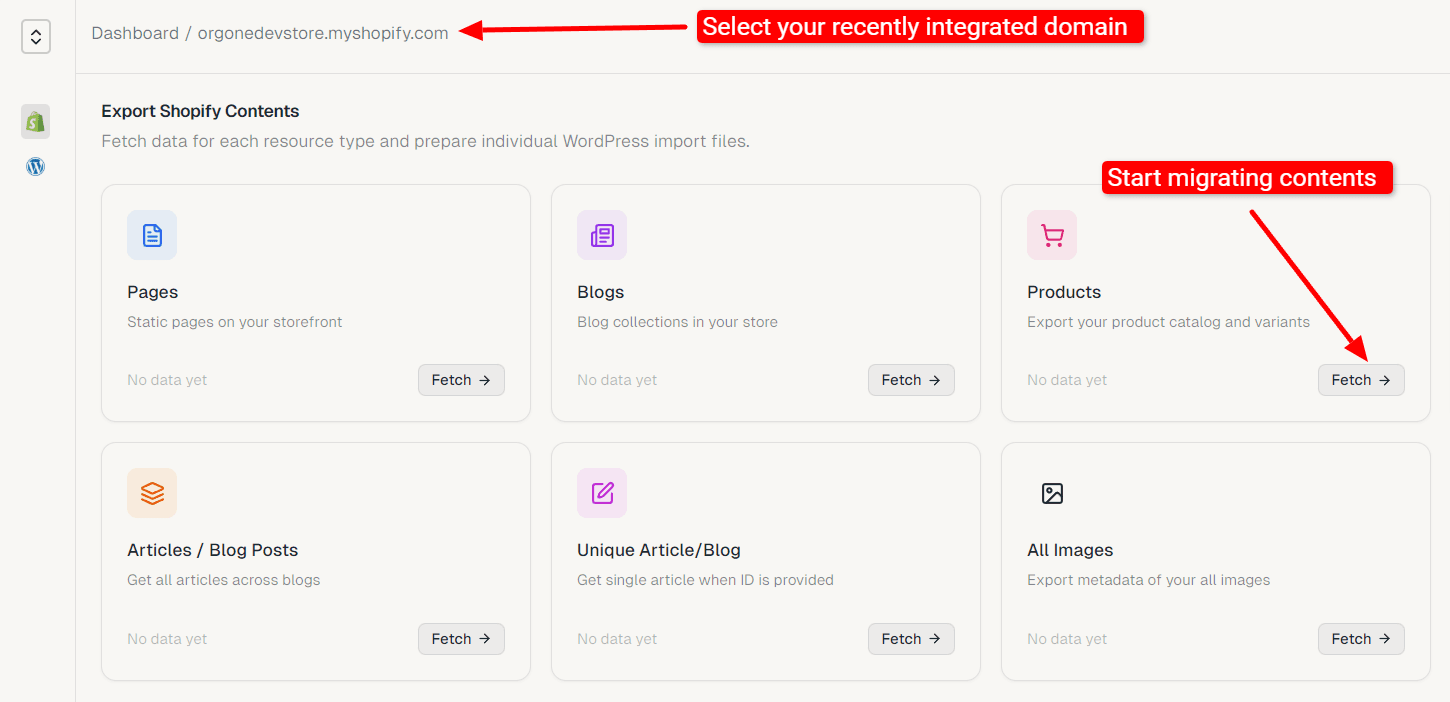
Your store now appears in the project selector, and you land on the Export Shopify Contents dashboard — with Pages, Blogs, Products, Orders, and more, all ready to Fetch whenever you want to start exporting.